Like many other manufacturers, MSI is building brands
to aid the development of their product lines.
 Over the past few Intel chipsets
MSI have developed their Big Bang family, such as the P55 Trinergy, P55 Fuzion, X58 XPower, P67 Marshal, X79 XPower-II and now the latest, whilst devoid of the Big Bang part from the
official title, is the Z77 MPower. MSI have coined this as ‘XPower-II’s
little brother’, designed as an overclocking board to be paired with
the MSI Lightning range of GPUs. As a result, the Z77 MPower is
designed with the MSI Lightning Twin Frozr IV scheme in mind. so how does the MSI fare?
Over the past few Intel chipsets
MSI have developed their Big Bang family, such as the P55 Trinergy, P55 Fuzion, X58 XPower, P67 Marshal, X79 XPower-II and now the latest, whilst devoid of the Big Bang part from the
official title, is the Z77 MPower. MSI have coined this as ‘XPower-II’s
little brother’, designed as an overclocking board to be paired with
the MSI Lightning range of GPUs. As a result, the Z77 MPower is
designed with the MSI Lightning Twin Frozr IV scheme in mind. so how does the MSI fare?
Overclocking for Z77 – Why Everyone Is At It
The motherboard market shrank in 2012, with reports suggesting that from the 80 million motherboards sold in 2011, this was down to 77 million worldwide in 2012. In order to get market share, each company had to take it from someone else, or find a new niche in an already swollen industry. To this extent, after the success of the ROG range, the top four motherboard manufacturers now all have weapons when it comes to hitting the enthusiast or power user with an overclocking platform.
In the past there have been attempts at pure overclocking boards, such as the Gigabyte X58A-OC, which was entirely stripped of all but the necessary components for pushing overclocks under sub-zero conditions for competitions. The board itself was cheaper due to the functionality not present, but it did not provide a rock solid home system for many users. The ASUS ROG range, has been releasing motherboards for both gaming and overclocking for several years, trying (and succeeding) with the mATX Gene, ATX Formula and Extreme. All three of these boards continuously push both the gaming and OC frontiers, with a slight gaming focus on the Formula and an OC focus on the Extreme, but all boards cross over into each other’s territory very easily.
MSI Z77 MPower Overview
If I were to build a motherboard from scratch, I would first identify all my targets and then order them in terms of importance. If the motherboard was designed to go within a specific price point, I would have a choice of raising the quality of the onboard components as a whole, or deciding to focus the cost on one particular area. This includes power delivery, options specific to each market, controllers, PCIe layout, board layout, heatsink design, and so on. With the Z77 MPower, MSI have hit a small road block in terms of their design philosophy – they wanted a model to bare the Big Bang name for Z77, but focus on both overclocking and gamers alike within tight budget constraints. It happily works for some areas, but not for others, on both the gaming and overclocking side of the coin. Let me explain.
As a gamer, I would want ample space for GPUs, a one-button OC method, plenty of rear IO connectivity with good controllers, a beefed up audio solution, and something to keep me up to date with the latest drivers and software. As an overclocker, I want an improved power delivery, easy-to-use overclocking tools, reductions of instability, a fast boot time, and in the case of extreme overclocking, a board that is easy to prepare and can do the changes I want to do.
As a gamer, the Z77 MPower gives an Ivy Bridge oriented GPU layout with either PCIe 3.0 x16/-/-, x8/x8/- or x8/x4/x4, and with plenty of space for GPU slots one and two. We get OC Genie for a quick CPU OC to 4.2 GHz on an i7-3770K, the rear IO caters for PS/2, USB 2.0, USB 3.0, as well as WiFi, and the Live Update 5 software onboard keeps all the drivers up to date as they are released. On the downside is our regular Realtek ALC898 audio codec with no special design or anything above that (moot point for gamers with their own audio cards), a regular Realtek NIC, the Atheros WiFi is single-stream 2.5 GHz-only, and there are no extra SATA ports. A brief upside in network connectivity is the addition of Realtek software to prioritize traffic over the network, and the color scheme is matched with the MSI Lightning range of GPUs.
Visual Inspection
The MSI Z77 MPower greets us with a very sleek and clean black livery with a yellow trim, akin to the Twin Frozr IV used on the MSI Lightning series GPUs. MSI have specifically gone out of their way to make sure all the ports and connectors are black, which is something we do not normally see as many manufacturers will just use what colors they have in stock on lower priced models. According to the marketing material, the top PCB layer is designed to protect all the traces used on the board by putting them down one layer – we see this is the case, and leads to a nicer looking product. It is also argued that this can also help with electromagnetic interference (EMI), resulting in cleaner signals, though we have no way of actually testing that (or if it makes a difference to the end user).
 The socket area is nice and clean for insulating, and big air coolers
will be hindered more by any memory installed than the power delivery
heatsinks. The heatsinks covering the power delivery are all connected
via heatpipe, but also low and fat with small grooves for airflow,
relying on mass rather than surface area to deal with heat generation.
The 8-pin CPU power connector is to the top left of this, relegated away
from the edge of the board due to the top heatsink placement.
The socket area is nice and clean for insulating, and big air coolers
will be hindered more by any memory installed than the power delivery
heatsinks. The heatsinks covering the power delivery are all connected
via heatpipe, but also low and fat with small grooves for airflow,
relying on mass rather than surface area to deal with heat generation.
The 8-pin CPU power connector is to the top left of this, relegated away
from the edge of the board due to the top heatsink placement.
There are three fan headers around the socket – the 4-pin CPU fan header is the nearest on the other side of the memory, partnered by another system 4-pin, and the third 4-pin is located beneath the main heatsink to the bottom left of the socket. The other two 4-pin fan headers on board are located at the bottom. It is interesting to note that the memory slots here use a dual-latch system, rather than the single sided latch that is started to be the norm on some Z77 boards, and can be preferred by overclockers that take out/put in hardware frequently.
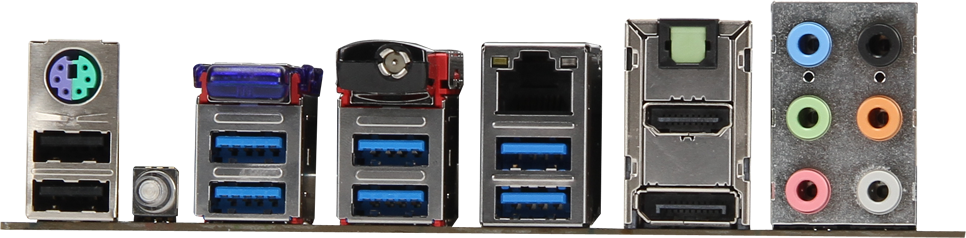
 The rear IO panel is designed to be full of functionality, and MSI have
pressed on with a large number of rear USB 3.0 ports, despite the fact
that they do not seem to work when installing an OS –
until the USB 3.0 drivers are installed. However, from left to right we
get a combination PS/2 port, two USB 2.0 ports, a ClearCMOS button, a
Bluetooth 3.0+HS module (Atheros AR3011), two USB 3.0 ports from the
chipset, four USB 3.0 ports from a Renesas uDP72020 controller, a WiFi
802.11b/g/n 2.5 GHz only module (Atheros AR9271), a gigabit Ethernet
port (Realtek 8111E), a HDMI output, a DisplayPort output, an optical
SPDIF output and audio jacks.
The rear IO panel is designed to be full of functionality, and MSI have
pressed on with a large number of rear USB 3.0 ports, despite the fact
that they do not seem to work when installing an OS –
until the USB 3.0 drivers are installed. However, from left to right we
get a combination PS/2 port, two USB 2.0 ports, a ClearCMOS button, a
Bluetooth 3.0+HS module (Atheros AR3011), two USB 3.0 ports from the
chipset, four USB 3.0 ports from a Renesas uDP72020 controller, a WiFi
802.11b/g/n 2.5 GHz only module (Atheros AR9271), a gigabit Ethernet
port (Realtek 8111E), a HDMI output, a DisplayPort output, an optical
SPDIF output and audio jacks.
to aid the development of their product lines.
 Over the past few Intel chipsets
MSI have developed their Big Bang family, such as the P55 Trinergy, P55 Fuzion, X58 XPower, P67 Marshal, X79 XPower-II and now the latest, whilst devoid of the Big Bang part from the
official title, is the Z77 MPower. MSI have coined this as ‘XPower-II’s
little brother’, designed as an overclocking board to be paired with
the MSI Lightning range of GPUs. As a result, the Z77 MPower is
designed with the MSI Lightning Twin Frozr IV scheme in mind. so how does the MSI fare?
Over the past few Intel chipsets
MSI have developed their Big Bang family, such as the P55 Trinergy, P55 Fuzion, X58 XPower, P67 Marshal, X79 XPower-II and now the latest, whilst devoid of the Big Bang part from the
official title, is the Z77 MPower. MSI have coined this as ‘XPower-II’s
little brother’, designed as an overclocking board to be paired with
the MSI Lightning range of GPUs. As a result, the Z77 MPower is
designed with the MSI Lightning Twin Frozr IV scheme in mind. so how does the MSI fare?Overclocking for Z77 – Why Everyone Is At It
The motherboard market shrank in 2012, with reports suggesting that from the 80 million motherboards sold in 2011, this was down to 77 million worldwide in 2012. In order to get market share, each company had to take it from someone else, or find a new niche in an already swollen industry. To this extent, after the success of the ROG range, the top four motherboard manufacturers now all have weapons when it comes to hitting the enthusiast or power user with an overclocking platform.
In the past there have been attempts at pure overclocking boards, such as the Gigabyte X58A-OC, which was entirely stripped of all but the necessary components for pushing overclocks under sub-zero conditions for competitions. The board itself was cheaper due to the functionality not present, but it did not provide a rock solid home system for many users. The ASUS ROG range, has been releasing motherboards for both gaming and overclocking for several years, trying (and succeeding) with the mATX Gene, ATX Formula and Extreme. All three of these boards continuously push both the gaming and OC frontiers, with a slight gaming focus on the Formula and an OC focus on the Extreme, but all boards cross over into each other’s territory very easily.
MSI Z77 MPower Overview
If I were to build a motherboard from scratch, I would first identify all my targets and then order them in terms of importance. If the motherboard was designed to go within a specific price point, I would have a choice of raising the quality of the onboard components as a whole, or deciding to focus the cost on one particular area. This includes power delivery, options specific to each market, controllers, PCIe layout, board layout, heatsink design, and so on. With the Z77 MPower, MSI have hit a small road block in terms of their design philosophy – they wanted a model to bare the Big Bang name for Z77, but focus on both overclocking and gamers alike within tight budget constraints. It happily works for some areas, but not for others, on both the gaming and overclocking side of the coin. Let me explain.
As a gamer, I would want ample space for GPUs, a one-button OC method, plenty of rear IO connectivity with good controllers, a beefed up audio solution, and something to keep me up to date with the latest drivers and software. As an overclocker, I want an improved power delivery, easy-to-use overclocking tools, reductions of instability, a fast boot time, and in the case of extreme overclocking, a board that is easy to prepare and can do the changes I want to do.
As a gamer, the Z77 MPower gives an Ivy Bridge oriented GPU layout with either PCIe 3.0 x16/-/-, x8/x8/- or x8/x4/x4, and with plenty of space for GPU slots one and two. We get OC Genie for a quick CPU OC to 4.2 GHz on an i7-3770K, the rear IO caters for PS/2, USB 2.0, USB 3.0, as well as WiFi, and the Live Update 5 software onboard keeps all the drivers up to date as they are released. On the downside is our regular Realtek ALC898 audio codec with no special design or anything above that (moot point for gamers with their own audio cards), a regular Realtek NIC, the Atheros WiFi is single-stream 2.5 GHz-only, and there are no extra SATA ports. A brief upside in network connectivity is the addition of Realtek software to prioritize traffic over the network, and the color scheme is matched with the MSI Lightning range of GPUs.
Visual Inspection
The MSI Z77 MPower greets us with a very sleek and clean black livery with a yellow trim, akin to the Twin Frozr IV used on the MSI Lightning series GPUs. MSI have specifically gone out of their way to make sure all the ports and connectors are black, which is something we do not normally see as many manufacturers will just use what colors they have in stock on lower priced models. According to the marketing material, the top PCB layer is designed to protect all the traces used on the board by putting them down one layer – we see this is the case, and leads to a nicer looking product. It is also argued that this can also help with electromagnetic interference (EMI), resulting in cleaner signals, though we have no way of actually testing that (or if it makes a difference to the end user).
There are three fan headers around the socket – the 4-pin CPU fan header is the nearest on the other side of the memory, partnered by another system 4-pin, and the third 4-pin is located beneath the main heatsink to the bottom left of the socket. The other two 4-pin fan headers on board are located at the bottom. It is interesting to note that the memory slots here use a dual-latch system, rather than the single sided latch that is started to be the norm on some Z77 boards, and can be preferred by overclockers that take out/put in hardware frequently.


 HDMI Licensing LLC

