Pages

Sunday, 7 April 2013

MSI Z77 MPower Review-

Like many other manufacturers, MSI is building brands
 to aid the development of their product lines.
Over the past few Intel chipsets MSI have developed their Big Bang family, such as the P55 Trinergy, P55 Fuzion, X58 XPower, P67 Marshal, X79 XPower-II and now the latest, whilst devoid of the Big Bang part from the official title, is the Z77 MPower.  MSI have coined this as ‘XPower-II’s little brother’, designed as an overclocking board to be paired with the MSI Lightning range of GPUs.  As a result, the Z77 MPower is designed with the MSI Lightning Twin Frozr IV scheme in mind. so how does the MSI fare?

 Overclocking for Z77 – Why Everyone Is At It
The motherboard market shrank in 2012, with reports suggesting that from the 80 million motherboards sold in 2011, this was down to 77 million worldwide in 2012.  In order to get market share, each company had to take it from someone else, or find a new niche in an already swollen industry.  To this extent, after the success of the ROG range, the top four motherboard manufacturers now all have weapons when it comes to hitting the enthusiast or power user with an overclocking platform.

In the past there have been attempts at pure overclocking boards, such as the Gigabyte X58A-OC, which was entirely stripped of all but the necessary components for pushing overclocks under sub-zero conditions for competitions.  The board itself was cheaper due to the functionality not present, but it did not provide a rock solid home system for many users.  The ASUS ROG range, has been releasing motherboards for both gaming and overclocking for several years, trying (and succeeding) with the mATX Gene, ATX Formula and Extreme.  All three of these boards continuously push both the gaming and OC frontiers, with a slight gaming focus on the Formula and an OC focus on the Extreme, but all boards cross over into each other’s territory very easily.

MSI Z77 MPower Overview
If I were to build a motherboard from scratch, I would first identify all my targets and then order them in terms of importance.  If the motherboard was designed to go within a specific price point, I would have a choice of raising the quality of the onboard components as a whole, or deciding to focus the cost on one particular area.  This includes power delivery, options specific to each market, controllers, PCIe layout, board layout, heatsink design, and so on.  With the Z77 MPower, MSI have hit a small road block in terms of their design philosophy – they wanted a model to bare the Big Bang name for Z77, but focus on both overclocking and gamers alike within tight budget constraints.  It happily works for some areas, but not for others, on both the gaming and overclocking side of the coin.  Let me explain.
As a gamer, I would want ample space for GPUs, a one-button OC method, plenty of rear IO connectivity with good controllers, a beefed up audio solution, and something to keep me up to date with the latest drivers and software.  As an overclocker, I want an improved power delivery, easy-to-use overclocking tools, reductions of instability, a fast boot time, and in the case of extreme overclocking, a board that is easy to prepare and can do the changes I want to do.
As a gamer, the Z77 MPower gives an Ivy Bridge oriented GPU layout with either PCIe 3.0 x16/-/-, x8/x8/- or x8/x4/x4, and with plenty of space for GPU slots one and two.  We get OC Genie for a quick CPU OC to 4.2 GHz on an i7-3770K, the rear IO caters for PS/2, USB 2.0, USB 3.0, as well as WiFi, and the Live Update 5 software onboard keeps all the drivers up to date as they are released.  On the downside is our regular Realtek ALC898 audio codec with no special design or anything above that (moot point for gamers with their own audio cards), a regular Realtek NIC, the Atheros WiFi is single-stream 2.5 GHz-only, and there are no extra SATA ports.  A brief upside in network connectivity is the addition of Realtek software to prioritize traffic over the network, and the color scheme is matched with the MSI Lightning range of GPUs.

Visual Inspection
The MSI Z77 MPower greets us with a very sleek and clean black livery with a yellow trim, akin to the Twin Frozr IV used on the MSI Lightning series GPUs.  MSI have specifically gone out of their way to make sure all the ports and connectors are black, which is something we do not normally see as many manufacturers will just use what colors they have in stock on lower priced models.  According to the marketing material, the top PCB layer is designed to protect all the traces used on the board by putting them down one layer – we see this is the case, and leads to a nicer looking product.  It is also argued that this can also help with electromagnetic interference (EMI), resulting in cleaner signals, though we have no way of actually testing that (or if it makes a difference to the end user).
The socket area is nice and clean for insulating, and big air coolers will be hindered more by any memory installed than the power delivery heatsinks.  The heatsinks covering the power delivery are all connected via heatpipe, but also low and fat with small grooves for airflow, relying on mass rather than surface area to deal with heat generation.  The 8-pin CPU power connector is to the top left of this, relegated away from the edge of the board due to the top heatsink placement.
There are three fan headers around the socket – the 4-pin CPU fan header is the nearest on the other side of the memory, partnered by another system 4-pin, and the third 4-pin is located beneath the main heatsink to the bottom left of the socket.  The other two 4-pin fan headers on board are located at the bottom.  It is interesting to note that the memory slots here use a dual-latch system, rather than the single sided latch that is started to be the norm on some Z77 boards, and can be preferred by overclockers that take out/put in hardware frequently.

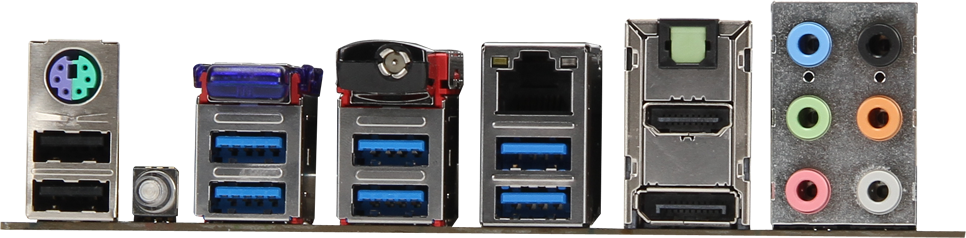
The rear IO panel is designed to be full of functionality, and MSI have pressed on with a large number of rear USB 3.0 ports, despite the fact that they do not seem to work when installing an OS –  until the USB 3.0 drivers are installed.  However, from left to right we get a combination PS/2 port, two USB 2.0 ports, a ClearCMOS button, a Bluetooth 3.0+HS module (Atheros AR3011), two USB 3.0 ports from the chipset, four USB 3.0 ports from a Renesas uDP72020 controller, a WiFi 802.11b/g/n 2.5 GHz only module (Atheros AR9271), a gigabit Ethernet port (Realtek 8111E), a HDMI output, a DisplayPort output, an optical SPDIF output and audio jacks.


Friday, 5 April 2013

Titan – The World’s Most Powerful Supercomputer

What does it take to be the world’s most powerful computer? Is it still the towering colossus of a machine like that of Deep Thought from the Hitchhiker’s Guide to the Galaxy, or can it fit in a normal office building?
Well the United State’s Department of Energy can tell you exactly, since they now house the device holding this title in their Oak Ridge National Laboratory in Tennessee.


titan Titan   The Worlds Most Powerful Supercomputer

SANTA CLARA, Calif.—Oct. 29, 2012—Titan, the world’s fastest open-science supercomputer, was completed this month at Oak Ridge National Laboratory in Tennessee, opening new windows of opportunity into the exploration of some of the world’s toughest scientific challenges.
Titan’s peak performance is more than 20 petaflops – or 20 million billion floating-point operations per second – about 90 percent of which comes from 18,688 NVIDIA® Tesla® K20 GPU accelerators. These are based on the NVIDIA Kepler™ architecture, the fastest, most efficient, highest-performance computing architecture ever built.
Researchers use ever faster supercomputers to accelerate the pace of discovery and innovation across a range of scientific fields of inquiry – from developing more efficient engines and higher capacity, lighter weight batteries, to studying climate change and finding cures for disease. Titan is a milestone on the path to exascale computing, which targets building a 1,000 petaflops supercomputer.
Titan is operated by Oak Ridge National Laboratory, part of the U.S. Department of Energy’s network of research labs, as an open-science system. This means it is available to researchers from academia, government laboratories, and a broad range of industries, who will use Titan to model physical and biological phenomena and seek breakthroughs faster than possible by experimentation alone.
Supported by the energy efficiency and cost-effectiveness of the Tesla K20 GPU, Titan is more than 10 times faster and five times more energy efficient than its predecessor, the 2.3-petaflops2 Jaguar system, while occupying the same floor space. Had Oak Ridge upgraded Jaguar by simply expanding its CPU-based architecture, the system would be more than four times its current size and consume more than 30 megawatts of power.3
“Basing Titan on Tesla GPUs allows Oak Ridge to run phenomenally complex applications at scale, and validates the use of accelerated computing to address our most pressing scientific problems,” said Steve Scott, chief technology officer of the GPU Accelerated Computing business at NVIDIA. “You simply can’t get these levels of performance, power- and cost-efficiency with conventional CPU-based architectures. Accelerated computing is the best and most realistic approach to enable exascale performance levels within the next decade.”
Titan development began three years ago with Oak Ridge’s decision to upgrade Jaguar, the previous open science system leader and a former world No. 1 most powerful supercomputer. The upgrade includes the Tesla K20 GPU accelerators, a replacement of the compute modules to convert the system’s 200 cabinets to a Cray XK7 supercomputer, and 710 terabytes of memory.
Titan 2 Titan   The Worlds Most Powerful Supercomputer
The Titan does actually fit into a single room, even though it is made up of 710 terabytes (780,653,255,720,898.5 bytes) of memory, 18,688 processing nodes, nearly 300,000 AMD Opteron 6200 series cores, and over 261,000 Nvidia K20x accelerator cores! All of that hardware mumbo-jumbo allows the Titan to hit a record 17.59 petaflops in performance, meaning it can calculate over 17 quadrillion operations per second. After all is said and done, this is another win for the United States as half of the top 10 most powerful supercomputers are now located within their borders.


Thursday, 14 March 2013

14-Year-Old Prodigy Programmer Dreams In Code


HDMI vs DisplayPort


The HDMI audio/video interface standard has become wildly successful. It’s the most common digital connection you’ll find in TVs, set-top boxes, Blu-ray players, A/V receivers, gaming consoles, camcorders, and digital cameras. Heck, it’s even showing up in some smartphones.
You’ll also find HDMI implementations in most consumer desktop and laptop computers. No modern all-in-one is complete without an HDMI input that allows you to connect a gaming console or a set-top box to the computer so you can use its display for a second purpose.
But given HDMI’s near ubiquity, you might have forgotten the other digital audio/video standard: DisplayPort. Though you’ll find it alongside HDMI in many late-model, add-in video cards, as well as in laptops marketed to business users, it rarely appears in Windows PCs aimed at consumers.
Both HDMI and DisplayPort can send high-definition digital video and audio from a source device to a display. So what’s the difference? Is one display interface superior to or more flexible than the other? We’ll try to answer these questions in this head-to-head comparison of their feature sets and typical use scenarios. But first, let's review how the two standards came to be, and what entities control them.

The connectors

HDMI connectors have 19 pins and are most commonly seen in three sizes: Type A (standard), Type C (mini), and Type D (micro). Of these, Type A is by far the most common. A fourth category of HDMI connector, Type E, is used for automotive applications. Most HDMI connectors use a friction lock, meaning that a tight fit keeps the plug mated to the socket, but some vendors have developed proprietary locking mechanisms designed to prevent the cable from pulling loose.
HDMI Licensing LLC
The three types of HDMI connectors you're most likely to encounter are (from left to right) standard, mini, and micro. A fourth connector type, for automotive applications, is not shown here.
DisplayPort connectors have 20 pins and are available in two sizes: DisplayPort and Mini DisplayPort (the latter is the port of choice for Microsoft's Surface Pro tablet). Interestingly, Intel’s Thunderbolt interface combines the features of Mini DisplayPort and adds PCI Express data connections—but that’s beyond the scope of this article. Though most full-size DisplayPort connectors have a locking mechanism that prevents them from being disconnected accidentally, the official spec does not require that feature.
You’ll find HDMI Type D micro connectors on some smartphones and tablets, but no manufacturer aside from Microsoft puts even Mini DisplayPort on its handheld devices. The locking connector common to full-size DisplayPort connectors, on the other hand, is a great feature that appears on only a few HDMI Type A cables.

The cables

The biggest problem with HDMI cable standards is that there are four of them, all of which were finalized only in 2010. Many, many older cables are not adequately labeled to identify their capabilities. Using an HDMI cable that isn't up to a particular task can yield problems including visual and audio glitches, artifacts, and audio/video synchronization problems. Here are details on the four types of HDMI cables:
  • Standard HDMI Cable: Provides sufficient bandwidth for only 720p and 1080i resolution video.
  • Standard HDMI Cable with Ethernet: Has the same bandwidth, but adds support for 100-mbps ethernet.
  • High Speed HDMI Cable: Provides more bandwidth, and can carry video with a resolution of 1080p or higher (up to 4096 by 2160, but at a maximum refresh rate of just 24Hz, which is fine for movies, but terrible for games). This type of cable can also handle 3D video.
  • High Speed HDMI Cable with Ethernet: Supports the same resolutions as High Speed HDMI Cable, as well as 3D, and adds support for 100-mbps ethernet.
Be sure to buy High Speed HDMI Cable connectors if you intend to send 1080p video from your PC or Blu-ray player to a display (ethernet is optional).
All four types of HDMI cables have a feature called the Audio Return Channel (ARC) that can send the audio from the TV tuner in your HDTV back to your AV receiver. Prior to ARC’s introduction, you needed to connect a second, audio-only cable between your TV and your A/V receiver to play sound from the TV tuner. (Note: ARC is unnecessary if you subscribe to cable or satellite TV and use a set-top box.)
The HDMI specification doesn't define a maximum cable length, nor does it state what type of material HDMI cables should be composed of. Copper wire is the most common material, but HDMI signals can also be run over CAT 5 or CAT 6 cable (for distances of up to 164 feet), over coaxial cable (for up to 300 feet), or over fiber (for more than 328 feet), according to HDMI Licensing LLC.
“Active” HDMI cables have integrated circuits embedded in the cable to amplify the signal. Active cables can be longer and thinner than passive cables (thinner cables are less likely to fail when forced to make hard bends).
DisplayPort cables are much simpler to define: There’s just one type! The current version, DisplayPort 1.2, delivers enough bandwidth to carry video resolutions of up to 3840 by 2160 pixels at a refresh rate of 60Hz, and it supports all common 3D video formats. DisplayPort cables can also carry multichannel digital audio. On the other hand, DisplayPort can’t carry ethernet data, and the standard doesn’t have an audio return channel.
The two types of DisplayPort connectors are Standard and Mini.
With the addition of a simple adapter, a DisplayPort cable can connect a DisplayPort source to a VGA display (which is very useful when you need to connect your laptop to an older video projector). Adapters are also available to connect a DisplayPort source to a single-link DVI or HDMI display. HDMI cables can be connected to a DVI interface, but that’s it.
A passive copper DisplayPort cable can support extremely high data rates (a video resolution of up to 3840 by 2160) over a length of 6.5 feet. If you want to run a passive copper DisplayPort cable as long as 50 feet, the standard says you'll be limited to 1080p resolution—but the spec is conservative, and in practice that 50-foot cable can carry enough data to support resolutions as high as 2560 by 1600 (sufficient for a 30-inch display).
An active copper DisplayPort cable, which draws power from the DisplayPort connector to operate a signal amplifier embedded in the connector, can carry video with a resolution of 2560 by 1600 over a 65-foot cable. Finally, Fiber DisplayPort cables can be hundreds of feet long.

Video and audio streams

HDMI can handle a single video stream and a single audio stream, so it can drive only one display at a time. That’s fine if you use a single monitor or a TV, but many people use more than one display these days. These use cases aren’t limited to stockbrokers keeping one eye on a ticker and the other on news headlines, either. Many gamers use two or more monitors simultaneously. And once you become accustomed to having multiple screens on your desk, you won't want to go back.
A single DisplayPort interface can support up to four monitors at 1920-by-1200-pixel resolution each, or two monitors at 2560-by-1600-pixel resolution, with each display receiving independent audio and video streams. And since some GPUs can support multiple DisplayPort interfaces, you can daisy-chain compatible monitors to connect as many as six displays to one source.

Which display interface is best? 

HDMI was designed primarily for consumer-electronics applications: Blu-ray players, TVs, video projectors, and the like. Despite the confusing cable specifications, it does things that DisplayPort can’t. Meanwhile, VESA designed DisplayPort to be the ultimate display interface for computers, so it complements rather than replaces HDMI.
Unfortunately, many computer manufacturers—especially those building consumer laptops and all-in-ones—seem to have decided that HDMI is enough. Here’s hoping that this attitude changes, because DisplayPort offers at least as much to consumers as it does to business users.
HDMI isn't going anywhere, and we wouldn't want it to, but it's time to for computer manufacturers to show DisplayPort some love, too.
In the meantime, here's what you should look for the next time you shop for an HDTV, computer, or monitor:
As we said at the outset, HDMI is ubiquitous. It will appear in just about any TV you might consider buying, and it will be included in every consumer-oriented computer display. It should also be present in most video cards, in laptop and desktop PCs, and (as an input, at least) in every all-in-one PC.
Better desktop displays, desktop PCs, and all-in-one PCs will support DisplayPort in addition to HDMI. Laptops, however, have less real estate available for connectors. For the most part, consumer laptops will provide HDMI, while business-oriented models will support DisplayPort.
If you plan to use a laptop with a stand-alone display, you won't regret paying a little more to get a model that offers DisplayPort: Its support for multiple displays and its ability to connect to nearly any other type of monitor with an inexpensive adapter give it greater flexibility than HDMI possesses.

Thursday, 28 February 2013

Download all your facebook data on to your PC

Facebook has added a new download button in your account that will help you move all your data out of Facebook as a zip file. It will have all your photos, videos, status messages, events and everything else that you may have ever uploaded to Facebook.
The process, as demonstrated in the following video, is extremely simple. Just go to your Account Settings page and click the “Download Your Information” link.


 How to download the “missing pieces” If you have been staying away from Facebook all this while because it was a one-way street, now is a good time to reconsider that decision because the data lock-in problem has been solved. There are however some things that you won’t find in the zip file. These include: 1. Your photos uploaded by other people Facebook lets you download stuff that you have uploaded but if there are pictures of you on Facebook that were uploaded by your friends, they won’t be available in the zip. In that case, you should use Fotobounce, an excellent app that can download all the photos where you were tagged with a click. Fotobounce is available on both Mac and Windows. 2. Facebook Phonebook Facebook provides a neatly formatted phonebook with contact numbers all your friends who have shared them on Facebook. You will miss this data in the exported zip but there’s a workaround. Later, you can import this file into Excel or Google Docs, strip the unnecessary text and you again have a nice list of names alongwith phone numbers. Update: Sorry but Facebook seems to have removed the phone book page recently

Monday, 25 February 2013

Dell XPS 12 Review:

When dell first launched their XPS brand—prior to acquiring Alienware—the XPS acronym stood for Xtreme Performance System. (Back then, it was considered really cool to use the letter X, so Extreme becomes Xtreme and we get an X rather than an E—though I suppose we’re not really any better about this in 2013.) The XPS line was Dell’s highest performance line, but over time it started to lose its luster. In 2005, Dell tried to reassert XPS dominance over companies like Alienware and Falcon Northwest, but when they later purchased Alienware the need for the XPS brand became questionable. We had Studio XPS for a bit, then XPS totally disappeared (around 2009), but now it’s back with a new role.
No longer is XPS the top performance consumer brand, as that task falls to Alienware; instead, XPS is a premium consumer line, generally offering better build quality and materials than the Inspiron line and with configurations that straddle the fence between high-end and budget offerings. Some businesses may also opt for XPS systems, as they tend to look a little nicer than the typical business laptops and they should offer similar reliability. Or at least, that’s the theory of it. The reality is that we’ve seen some good XPS offerings since the relaunch, but we’ve also seen some disappointing units with mediocre displays and very little other than appearance to set them apart from the Inspiron line.
Thankfully, that’s not the case with the XPS 12 Duo. Build quality has been generally good of late with the XPS laptops we’ve reviewed, and while there were certainly flaws I found a lot to like in the initial XPS 15 and 15z. The more recent XPS 15was a different matter, as the combination of a 35W quad-core processor with a GT 640M GPU proved to be more than the cooling could handle, and rampant throttling was the result. I thought Dell would eventually address the problem with a BIOS update, but that never came and so the “detailed first look” ended up as the final review.let’s start with the specifications rundown.
Dell XPS 12 Duo Specifications
Processor Intel i7-3517U
(Dual-core 1.90-3.00GHz, 4MB L3, 22nm, 17W)
Chipset HM76
Memory 8GB (2x4GB) DDR3-1333 (9-9-9-24-1T)
Note: RAM is soldered onto motherboard
Graphics Intel HD 4000
(16 EUs, up to 1150MHz)
Display 12.5" Glossy 16:9 1080p (1920x1080)
(LG LP125WF1)
Storage 256GB Micron C400 mSATA
Optical Drive N/A
Networking 802.11n WiFi (Intel Advanced-N 6235)
(Dual-band 2x2:2 300Mbps capable)
Bluetooth 4.0 (Intel)
Audio Realtek ALC275
Stereo Speakers
Headphone/Microphone combo jack
Battery/Power 4-cell, 8.3V, ~4160mAh, ~47Wh
65W Max AC Adapter
Front Side N/A
Left Side Volume Rocker Buttons
Power Button
Headphone/Microphone Jack
Screen Orientation Lock Button
Right Side 1 x USB 3.0 (Powered when Sleeping)
1 x USB 3.0
Mini-DisplayPort
AC Power Connection
Back Side N/A
(Exhaust vent located on bottom)
Operating System Windows 8 64-bit
Dimensions 12.48" x 8.46" x 0.59-0.79" (WxDxH)
(317mm x 215mm x 15-20mm)
Weight 3.35 lbs (1.52kg)
Extras HD Webcam
80-Key Backlit Keyboard
Warranty 1-year limited warranty standard
3-year available ($199 upgrade for "Good" service)
Price $1199 Base Model (Core i5, 4GB, 128GB SSD)
$1699 Tested (Core i7, 8GB, 256GB SSD)
As is so often the case with review units, we have the top-end model of the XPS 12 Duo in house for review. That means we get an i7-3517U processor, 8GB RAM (4GB soldered onto the motherboard), and a 256GB SSD. As mentioned already, Dell is also using a 12.5” 1080p IPS display, which is one of the standout items of the spec sheet. Overall, the specs match up pretty well against the Acer S7; the major differences are the battery capacity (Dell has 34% more battery capacity), I/O ports (Dell doesn’t have any sort of flash memory reader), and the dimensions. Not surprisingly, the XPS 12 Duo is closer to the maximum dimensions Intel allows with a sub-14” Ultrabook, but the hybrid tablet aspect and other elements could very well make up for the increased thickness.
The base model of the XPS 12 Duo starts at $1200 and comes with an i5-3317U, 4GB RAM, and a 128GB SSD. Pricing is usually a major factor when people are shopping for a new laptop, and $1200 is likely a lot higher than most will be willing to pay. That’s going to be a problem, and we would expect a system carrying a price like this to basically get every element right, which is unfortunately not the case. The various upgrades that are available only make the situation worse. For $200 more, Dell will sell you an i7-3517U with 8GB RAM, $1500 will get you the i5-3317U with 8GB RAM and a 256GB SSD, or you can get the whole enchilada (like our review system) for “only” $1700. Yikes!
I’m not sure why companies insist on trying to milk their customers like this, but frankly there’s no point in even offering a 4GB model at this stage; we’re talking about $27 for 2x2GB compared to $45 for 2x4GB at retail, and with a starting price well north of $1000 we expect 8GB standard. Dell also looks to be charging roughly $250 for the 256GB SSD upgrade; granted, compact SSDs are more expensive than 2.5” models, but a new 256GB mSATA SSD will generally cost less than $300 and a 128GB model is under $150, so we’d like the upgrade cost to be closer to $100. And rounding out the pricing the CPU upgrade is also a premium charge, since Intel quotes $225 for the i5 compared to $346 for the i7 (and there’s no way Dell is paying anywhere near those prices).
As much as there is to like with the XPS 12 Duo, I find myself at the same conclusion I came to with the Acer S7: this is a good Ultrabook, but who is going to pay Apple prices (or even higher than Apple prices) for Dell hardware? Apple has built a premium brand name over the years and their user base is willing to support their prices, but there simply aren’t any Apple compatible laptops (unless you want to try and make your own Hackintosh/HackBook). In the Windows world, alternatives are a dime a dozen, so you can’t get away with the same premiums even if you’re making premium hardware. My gut feeling is that the XPS 12, like the S7, is priced about $200 too high on the base model, and about $400 too high for the top configuration we’re reviewing. But if we just ignore pricing for a bit, how does the XPS 12 fare in day-to-day use?

Upcoming Smartwatch Samsung GALAXY Altius Leaked


Amid speculations of iWatch from Apple, a collection of innumerable screenshots representing a smartwatch from Samsung has fueled speculation in the entire market. Several images displayed on a Korean message board have created ripples of speculation regarding such a smart device that can actually get into a head on collision with iWatch from Apple. However, both the products are yet to come to surface and declared as of now by various experts, that they are at a speculative stage.
The series of screenshots, as presented over a Korean message board, had exposed a product by the name of GALAXY Altius. However, there is also a speculation that Samsung is going to market another device, Galaxy S IV, very soon. The message board has also flashed several shots of SKTelecom and SKT at numeral occasions, fuelling speculation that the device would be launched along with data plan from a definite mobile operator of South Korea, initially.
Speculated features of upcoming smartwatch
According to what has appeared on the screenshots, experts have deducted that software of the product resembles something related to an Android platform. It can also be a basic interface powered by Java, maybe something of REX series from the company.
Smartwatch Samsung GALAXY Altius Leaked
It is speculated that the upcoming speculated smartwatch from Samsung would probably come with 500 x 500 resolution of pixels, which is even possible given the technical developments that Samsung has been able to achieve recently. Screenshots revealed, has also indicated a code name ‘Samsung-GA7’.
The device is featured with an LCD display along with AltiusOS beta2 software version. The Korean message board also revealed that the upcoming smartwatch would come with 125MB internal storage. A certain percentage of internal storage would be used for other purpose, making it a symbiotic gadget.
The Korean massage board has even featured screenshots of the smartwatch, revealing a series of various tiles – email connection, clock and a music player. A notification associated with email would also indicate the number of unread messages on the screen itself. A bar at the lower portion of the screen also suggests that the device would have the facility of touch screen.
Speculation regarding brand naming
It is also mention worthy that the brand name of ‘Samsung Galaxy Altius’ was proposed to SamMobile, at a later part of last month. Experts had also speculated that Altius would be revealed as a flagship device of Samsung. In the mean time, Samsung has already confirmed that they are working GT-19500 and have so far considered the name of an upcoming device to be Samsung Galaxy S IV. This has further fuelled the rumors that the company is certainly working on the smartwatch and it could be revealed as Samsung Galaxy Altius.
Experts are also considering the fact that Samsung might be working on its upcoming devices of smartphone and smartwatch under the same name of Altius. They might come up with a series of next generation smart gadgets under the brand name, Altius. However, such intentions are also not clear and the experts are quite apprehensive of such action by Samsung.

Forensic tool to decrypt TrueCrypt, Bitlocker and PGP contains and disks released

One of the things that you can do to protect your data is to use encryption. You can either encrypt individual files, create a container to move files in to or encrypt a partition or disk. The main benefit of encryption is that a key, usually a password, is needed to access the data. A basic form of encryption is if you password protect a zip file, more advanced encryption can protect the whole system including the operating system partition from unauthorized users.
While it is important to pick a secure password during setup to prevent third parties from successfully guessing or brute forcing the password, it is important to note that there may be other means to gain access to the data.
Elcomsoft has just released its Forensic Disk Decryptor tool. The company states that it can decrypt the information stored in PGP, Bitlocker and TrueCrypt disks and containers. It needs to be noted that local access to the system is required for one of the methods used by the program to work. Encryption keys can be acquired by three means:
  • By analyzing the hibernation file
  • By analyzing a memory dump file
  • By performing a FireWire attack
The encryption key can only be extracted from the hibernation file or memory dump if the container or disk has been mounted by the user. If you got the memory dump file or hibernation file, you can start the key search easily and at any time. Note that you need to select the right partition or encrypted container in the process.
truecrypt bitlocker pgp password screenshot
If you do not have access to a hibernation file, you can create a memory dump easily with the Windows Memory Toolkit. Just download the free community edition and run the following commands:
  • Open an elevated command prompt. Do so with a tap on the Windows key, typing cmd, right-clicking the result and selecting to run as administrator.
  • Navigate to the directory you have extracted the memory dump tool to.
  • Run the command win64dd /m 0 /r /f x:\dump\mem.bin
  • If your OS is 32-bit, replace win64dd with win32dd. You may also need to change the path at the end. Keep in mind that the file will be as large as the memory installed in the computer.
Run the forensic tool afterwards and select the key extraction option. Point it to the created memory dump file and wait until it has been processed. You should see the keys being displays to you by the program afterwards.

DriveDroid: use your phone to boot ISO images

With storage size increasing every year, smartphones are finally reaching levels that make them interesting for other applications as well. My Galaxy Note II ships with 16 Gigabyte of storage which can be expanded further with the use of memory cards.
DriveDroid is a free and paid application for Android devices that allows you to use your phone as a boot drive to boot your PC using ISO or IMG image files stored on the phone. This may make sense in a couple of ways. Maybe you want to have a repair or troubleshooting kit always with you, and since you carry your phone around with you at all times, it makes sense to use it for that purpose.
You can use it stationary as well, for instance if you do not have access to another flash memory stick, or if you need more storage than the one you have offers.
There are a couple of requisites though which I’d like to mention first before you get too excited. The application is compatible with all Android 2.2 and higher devices, and requires root to work. It also uses USB Mass Storage which means that some phones, like the Galaxy Note 2 or the Nexus 10 can’t be used even if they are rooted. You also need an USB cable to connect the phone to the PC.
drivedroid boot iso img screenshot
To use DriveDroid do the following:
  • The first thing you need to do is add at least one disc image to the application. You can do so with a tap on the plus icon after you have started the application.
  • Here you get options to create a blank image, download an image, or add an image from a file.
  • The download option presents you with a selection of Linux distributions that you can download to your phone, the add local image option requires you to copy an ISO or IMG image to the phone or tablet first.
  • Once you have at least one image on your phone, select the image file in DriveDroid that you want to boot your PC from.
  • Connect the phone to the PC via USB if you have not done so and make sure that USB boot is the primary boot method.
  • You should notice that your PC is booting the image and not the local operating system.
While Linux seems to be the focus right now, you can also create a Windows installation disc using DriveDroid. The developer has published a tutorial on how to do so for Windows 7.

Firefox OS Hits The Ground Running With Phones From Telefonica, T-Mobile, Firefox Marketplace For Apps; 18 Carriers In All Signed Up For Mozilla’s Open Web Effort


Firefox OS, the new, HTML5-friendly mobile OS from Mozilla, is today taking a big step forward in its strategy to become a viable third player in the smartphone landscape currently dominated by Google’s Android and Apple’s iOS. Mozilla is announcing that 18 carriers have now committed to its Open Web HTML5 device push; the launch of the Firefox Marketplace app store to aggregate content for the platform; and some of the first low-cost handsets coming out of its carrier partnerships that will be coming out this summer.
Telefonica — whose ZTE-made handset is pictured here — will sell its first Firefox-powered phones in Latin America and Spain; and Deutsche Telekom will debut its handsets in Poland before expanding to other markets in Eastern Europe. Other operators announcing handsets today include Latin American powerhouse America Movil (starting first in its home market of Mexico) and Norway’s Telenor, which has operations across Eastern Europe and Asia, including Malaysia, Pakistan and Bangladesh.
The idea is that carriers may have a better opportunity in markets with lower overall smartphone penetration, and a customer base interested in low-cost handsets (versus premium devices like the iPhone or a Samsung Galaxy device).

Google Nexus 4 Availability in India

Google Nexus 4 is an excellent value for money phone. For $299 you get the kind of features you get in an iPhone and a bonus for iOS haters is that it comes with stock android. I have been looking to buy a Nexus 4 phone myself but right now the supply is very low.
nexus 4
In India it is not available officially and sellers in ebay.in are selling it for Rs.35,000. The original price of the Nexus 4 if bought in US would be only Rs.16,000. It is unlikely that Google will launch Nexus 4 in India officially because their main focus is on spreading the platform and earn revenue from the sales of content like Apps, Movies and Music from the play store rather than make profit directly from the hardware sales. What do you think?